
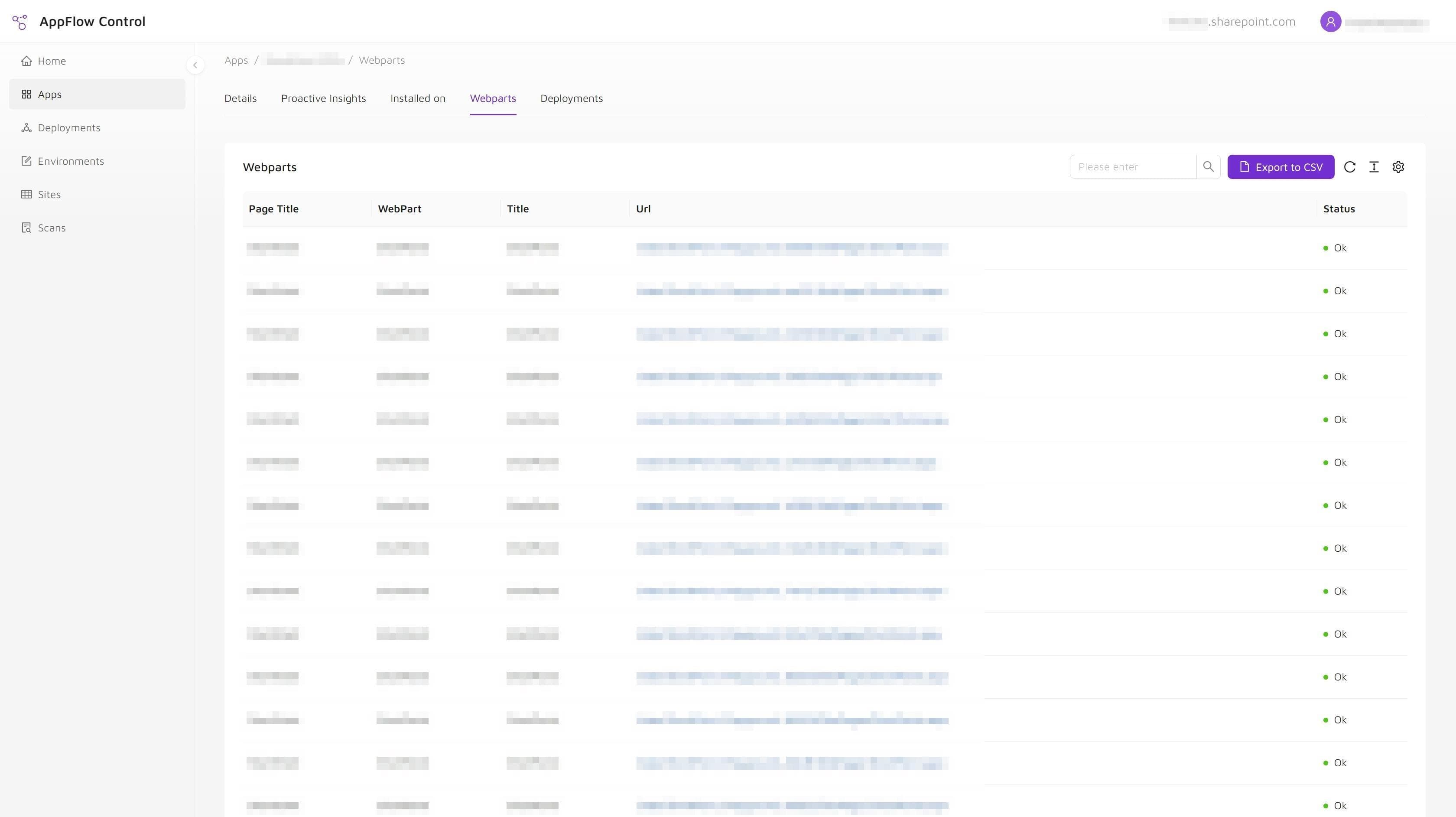
SharePoint app inventory answers an important question: where has this solution been installed? It does not answer the question that usually determines business impact: where is a component from that solution actually used?
Those two facts are easy to collapse into one. In a small environment, the difference may not cause much trouble. At scale, it changes how accurately administrators can plan updates, evaluate adoption, contact site owners, and retire old apps.
What App Installation Data Tells You
Installation inventory describes the relationship between an app package and a SharePoint site. It can help administrators identify:
- which sites have an app installed;
- whether rollout coverage matches the intended target list;
- where an app may need an update;
- and which sites should be reviewed before an uninstall operation.
Microsoft's SharePoint Framework enterprise guidance describes deployment through an app catalog and notes that administrators can monitor installed locations for a solution. That is useful lifecycle information, but it remains app-level information.
For a repeatable way to inspect this layer, see how to locate SharePoint SPFx app installations across multiple sites.
What Installation Data Does Not Tell You
Installing an app makes its components available on a site. It does not prove that an editor placed a web part on a page, that the page is still published, or that a business process still depends on it.
An installation record alone cannot reliably tell you:
- which modern pages contain a specific SPFx web part;
- whether that page is an important landing page or an abandoned test page;
- which site owner should validate a planned change;
- or whether removing the package will leave a visible failure on a production page.
This is the operational gap behind many overly broad QA plans. Teams see a long installation list and assume every site carries the same risk. In reality, the affected page set may be narrower, differently owned, and more business-critical than the installation data suggests.
Why Page-Level Usage Changes The Decision
Page-level usage inventory connects the package to the user experience. It shows where a component has been instantiated, which is the evidence administrators need when a change could affect rendering or functionality.
That matters in four common workflows.
Updating an app
Installation data identifies candidate sites for the update. Usage data identifies the pages that should be included in smoke testing and stakeholder review.
Investigating a vulnerability
The package inventory defines technical scope. Page-level usage helps the response team find visible business dependencies and prioritize validation.
Reviewing adoption or licensing
An installed app may never have moved beyond evaluation. Usage evidence helps distinguish availability from actual placement, although page placement alone should not be treated as proof of active end-user engagement.
Retiring a solution
Installation data tells administrators where uninstall work may be required. Usage data tells them where page cleanup, owner communication, or replacement planning must happen first.
The case study How a Governance Team Found Unused SharePoint Apps and Reduced Tenant Sprawl shows how the two views support a more defensible cleanup process.
Common Mistakes In Install-Only Reporting
The most common mistake is treating a package inventory as a dependency map. That creates several avoidable risks:
- Overstating adoption. A broad installation footprint can look like broad usage even when few pages contain the component.
- Testing the wrong scope. QA teams may test every installed site while missing the specific pages that business owners depend on.
- Removing too early. An app may appear inactive at the catalog or support level while a web part remains embedded on a production page.
- Keeping everything forever. When administrators cannot prove what is safe to remove, obsolete solutions remain installed as a precaution.
None of these failures come from a lack of care. They come from asking installation data to answer a usage question.
A Complete SharePoint App Visibility Model
A useful lifecycle inventory separates at least three layers:
| Visibility layer | Question it answers | Typical decision |
|---|---|---|
| Catalog availability | Can this app be installed? | Approval and distribution |
| Site installation | Where is the app installed? | Rollout, update, and uninstall scope |
| Page-level usage | Where is the component placed? | QA, communication, replacement, and cleanup |
Teams may also need ownership, version, deployment status, and page importance around those layers. The central point is that no single status should stand in for the whole lifecycle picture.
AppFlow Control brings installation inventory and web part location workflows into the same administrative control surface. That lets teams move from "the app exists somewhere" to a more useful sequence: where it is available, where it is installed, and where its components are used.
How To Use Both Views Before A Change
Before an update or retirement, use a simple evidence chain:
- Confirm the exact package and version being changed.
- Export or record every known installation location.
- Identify pages that use components from the package.
- Map those pages to site owners and business importance.
- Define QA, communication, replacement, and rollback steps from that evidence.
- Verify installation and page state again after the change.
For the page-discovery workflow, follow how to find where a SharePoint web part is used before you update or remove it. If the decision is a permanent removal, continue with how to retire SharePoint apps and SPFx web parts without breaking pages.
Teams that need to make this evidence chain part of routine governance can combine AppFlow Control with Microsoft 365 administration support to define ownership, review gates, and repeatable change records.
Next step
Compare installation and usage before the next SharePoint app change
AppFlow Control brings site-level app inventory and page-level web part visibility into one workflow so the team can plan from evidence instead of assumptions.