
Before you update, patch, or retire an SPFx solution, you need to know more than whether the app exists in the catalog. You need to know where the component is actually visible to users. In large environments, that is the difference between a controlled rollout and a risky guess.
AppFlow Control gives administrators a direct way to inspect page-level web-part usage across the environment. That matters when support teams need a precise QA list, when governance teams need evidence before an app is removed, and when site owners need early communication about a change.
Why This Question Matters Before You Change Anything
The operational risk around SharePoint app changes usually appears before the technical rollout starts.
If you cannot answer which pages use a web part, you also cannot answer:
- who needs to test the change,
- which site owners need to be notified,
- or whether uninstalling the app will break a production page.
That is why page-level usage visibility belongs in the same workflow as updates and retirement planning. The case study How an Enterprise SharePoint Team Mapped SPFx Web Part Usage Before a High-Risk Update shows how that visibility changes the rollout conversation.
What Native SharePoint Tooling Does Not Show
Native SharePoint gives administrators app catalogs, deployment options, and package-level administration. It does not give them a direct answer to the question, "Which pages still contain this web part?"
Without a purpose-built visibility layer, teams usually fall back to a mix of:
- manual outreach to site owners,
- search workarounds,
- or custom scripts that still need interpretation afterward.
That is part of the broader reason SharePoint app management breaks at scale: the platform provides deployment mechanics, but not enough lifecycle visibility.
Installed On A Site Is Not The Same As Used On A Page
This distinction matters more than many teams realize.
- Installed on a site tells you where the package has been deployed.
- Used on a page tells you where people will actually notice the change.
Both views are useful, but they answer different questions. If you still need the installation inventory, use how to locate SharePoint SPFx app installations across multiple sites alongside the page-level workflow below.
Step-By-Step Workflow In AppFlow Control
Step 1: Sign In or Sign Up
Visit AppFlow Control and sign in or sign up if you do not already have an account.

Step 2: Connect to Your SharePoint Online Environment
Ensure your SharePoint Online environment is connected to AppFlow Control if you have not done so already.
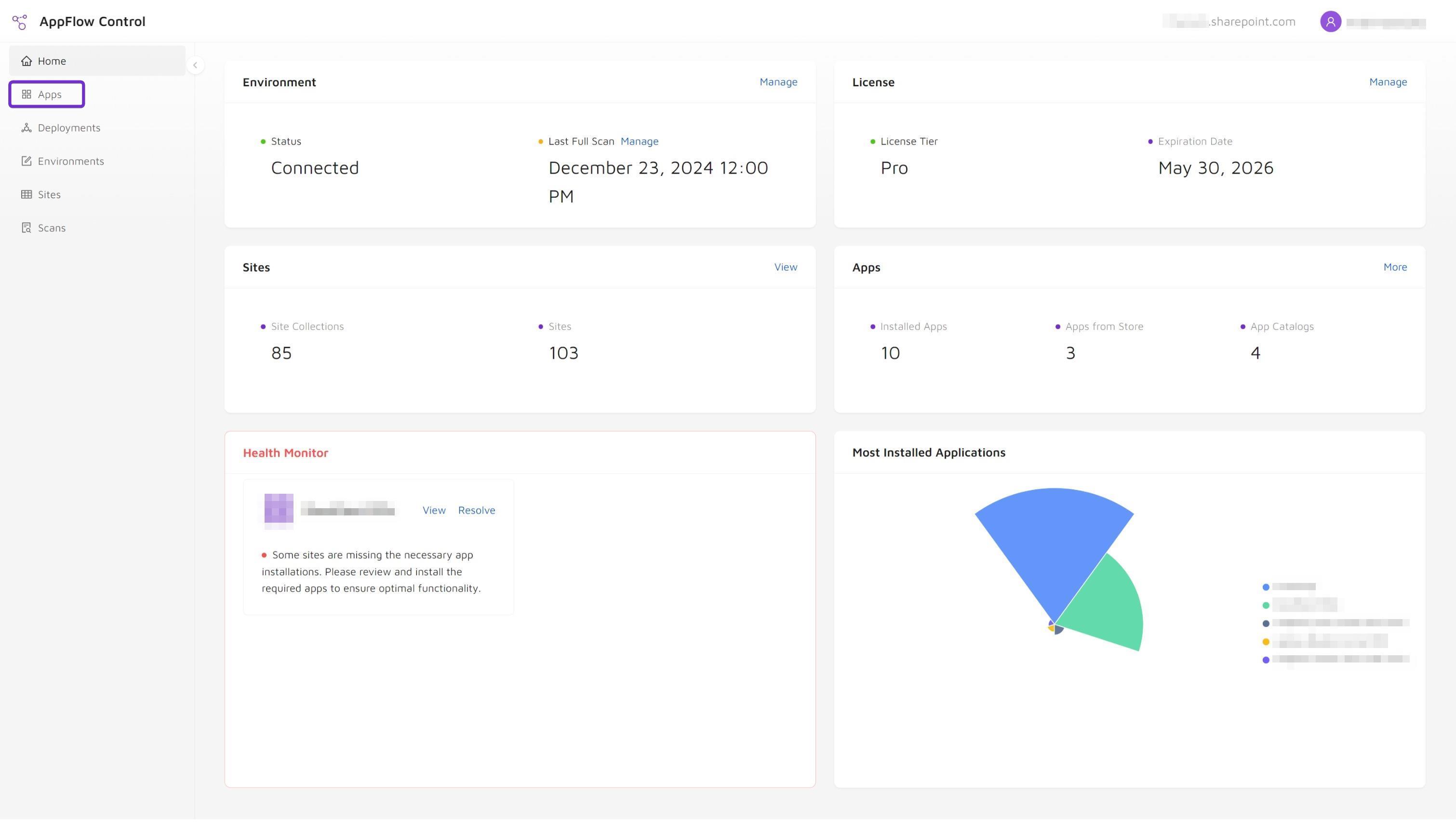
Step 3: Navigate to Apps
Select Apps from the AppFlow Control menu.
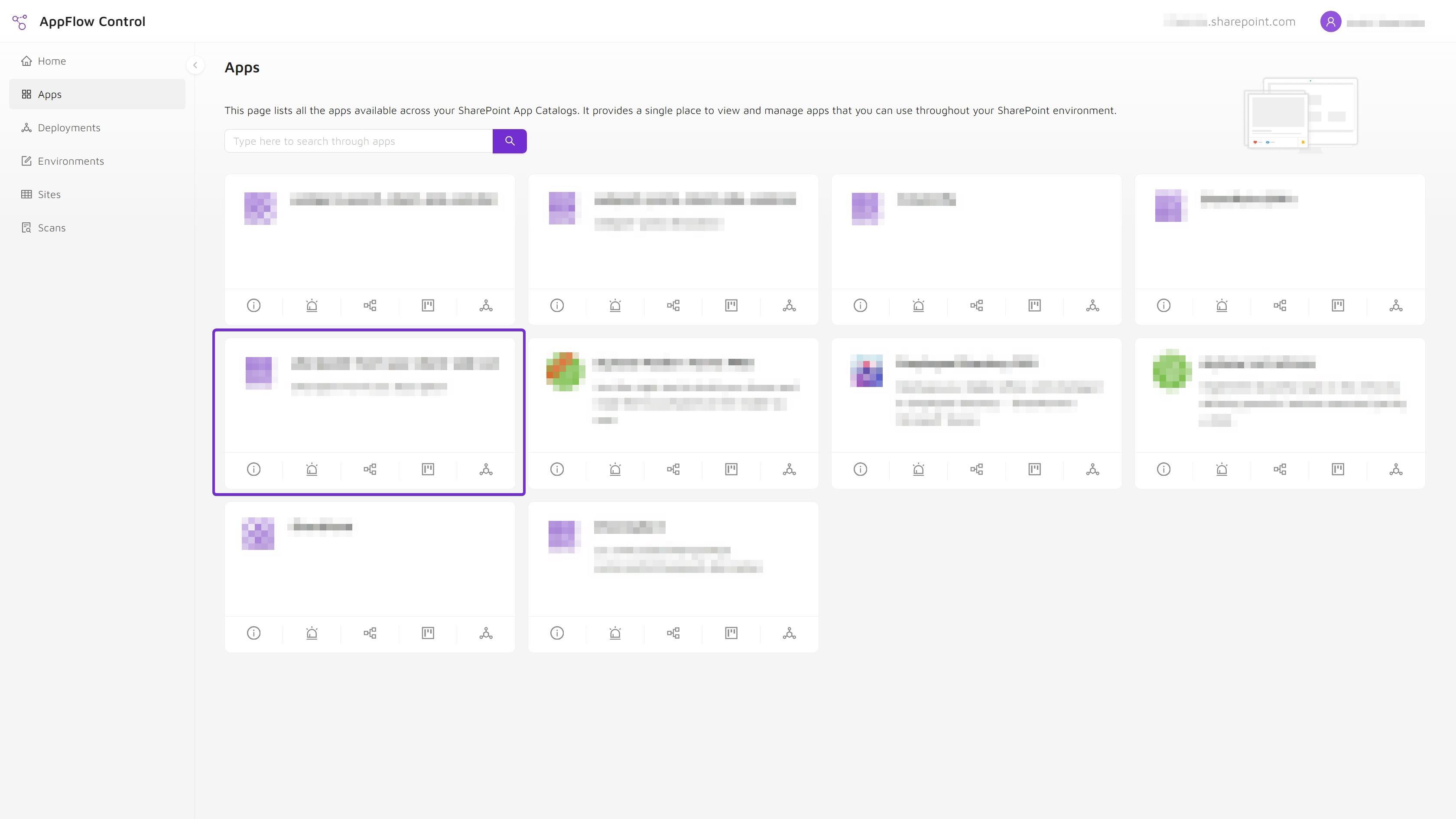
Step 4: Choose the App
Find the app whose webpart locations you want to inspect. Use search to filter and select the right app.
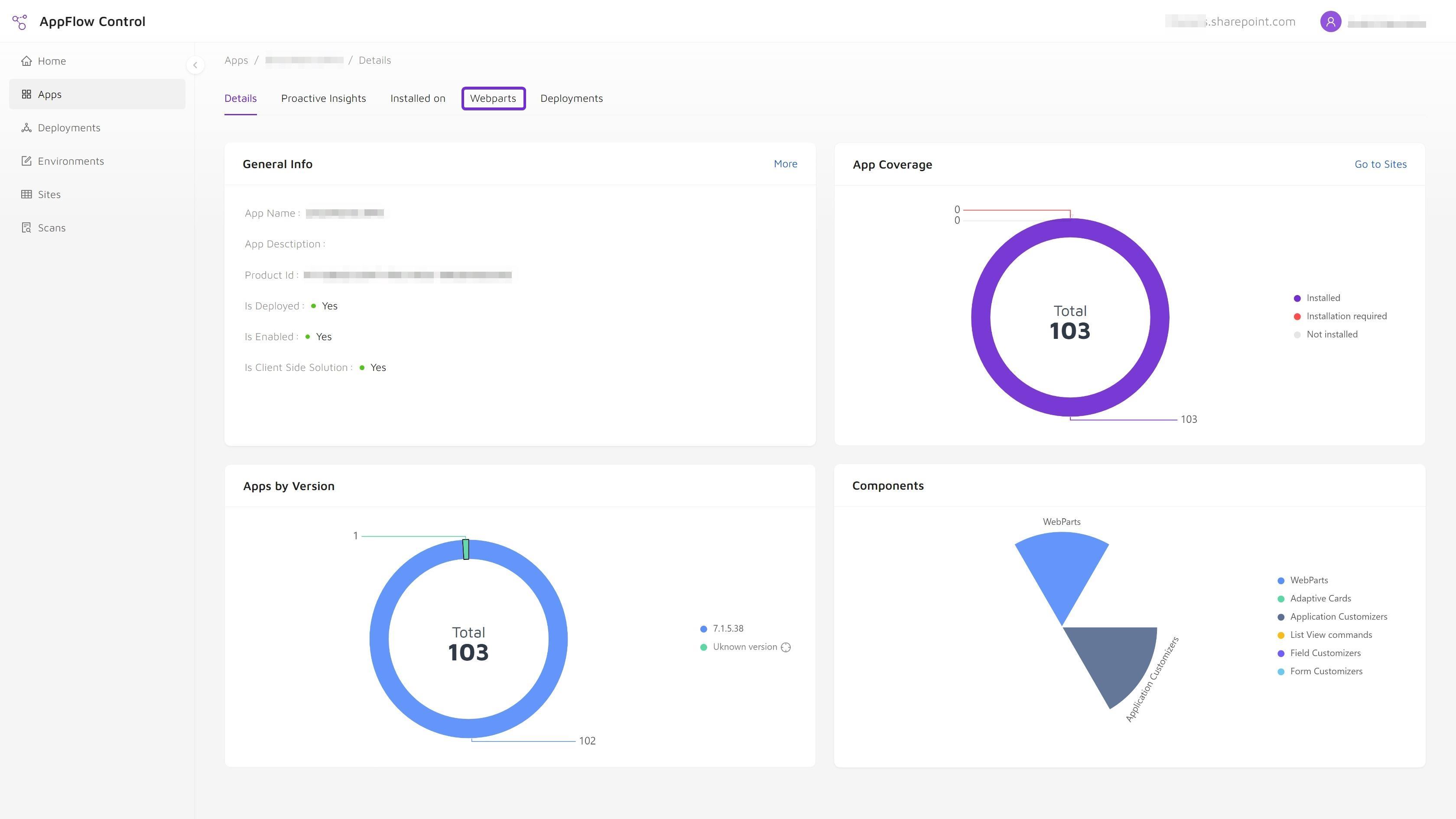
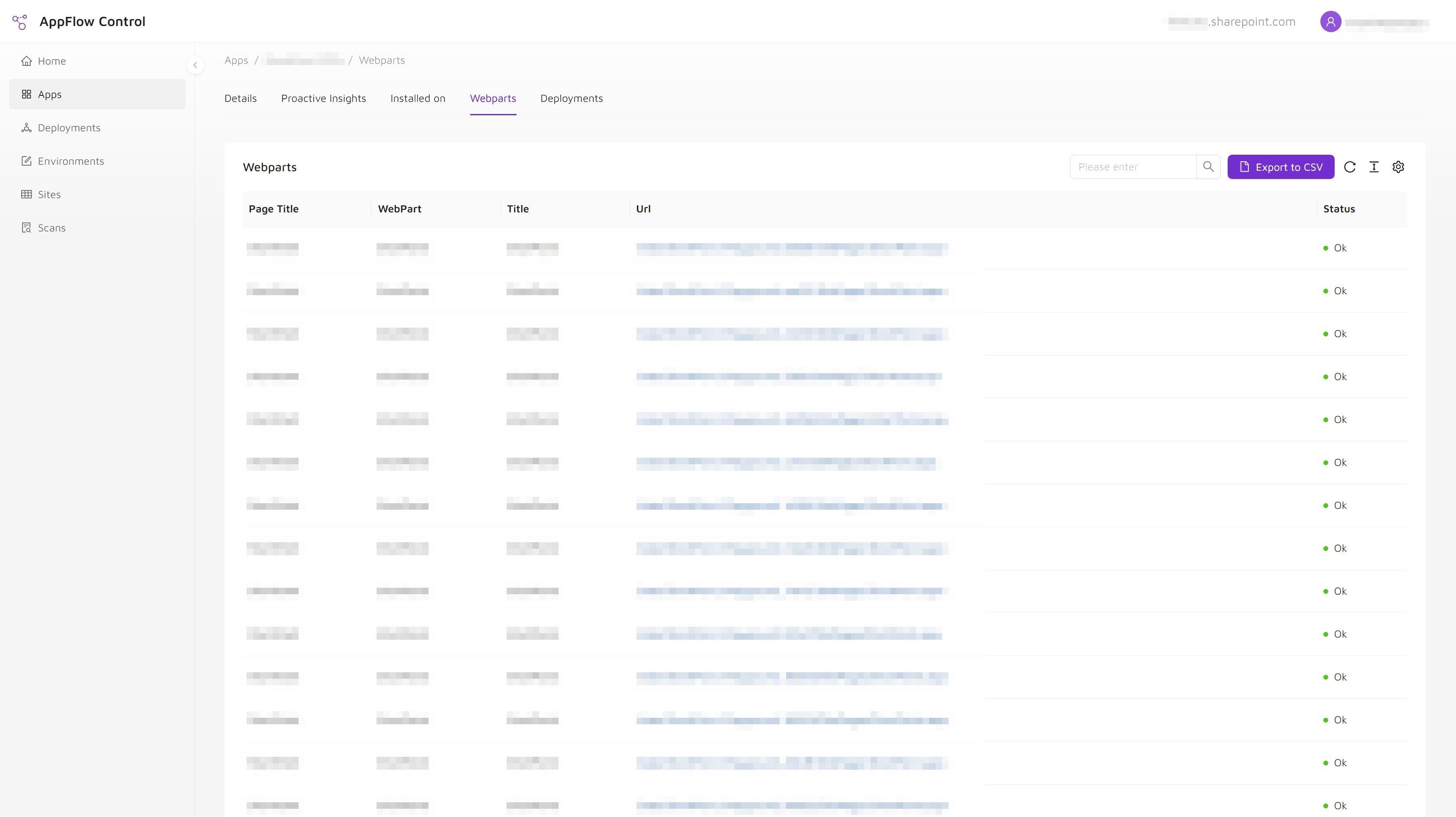
Step 5: Open the Webparts Tab
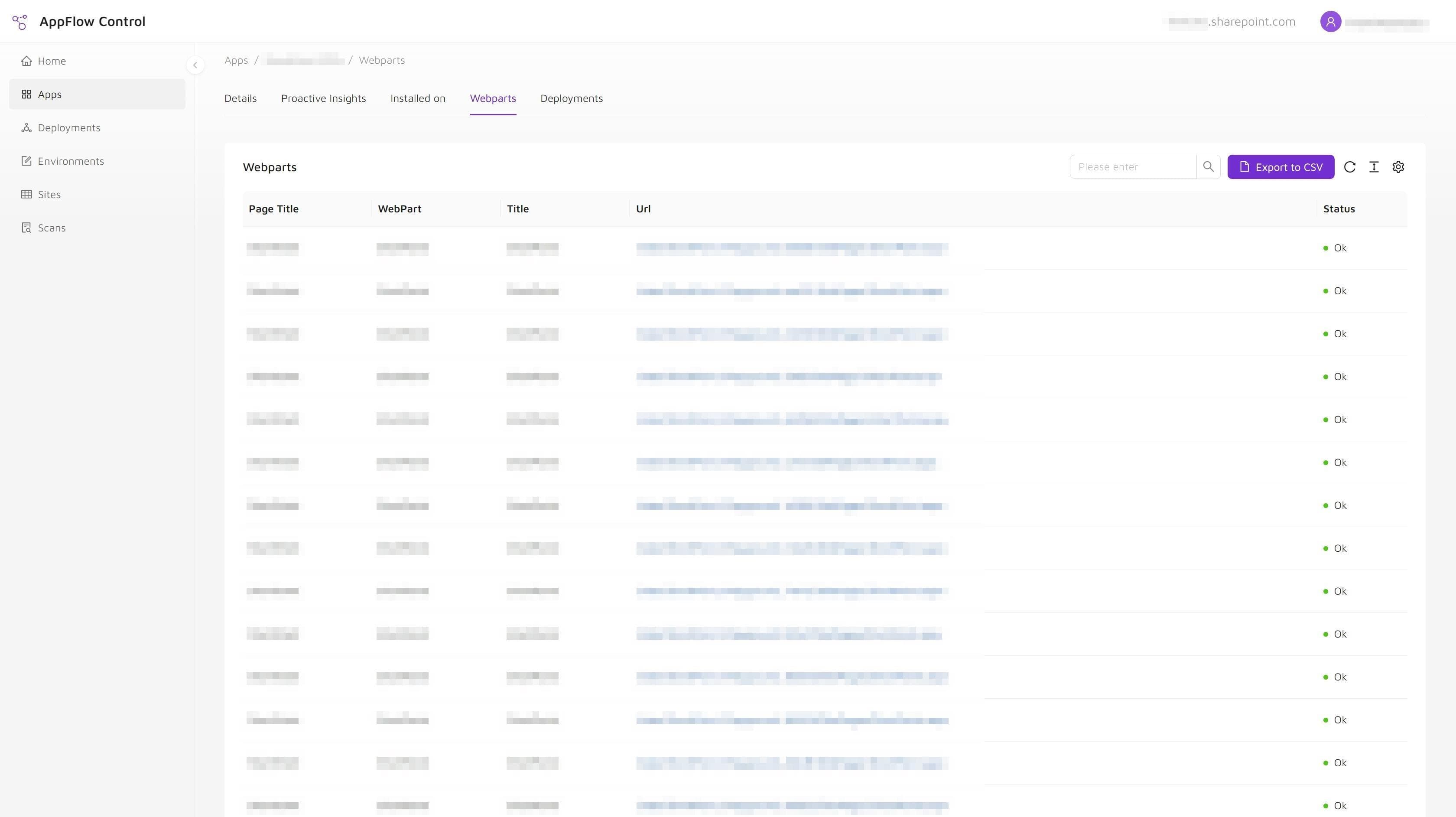
Click the Webparts tab to review every detected webpart instance and its location. From there you can:
- Filter the webpart list.
- Export the details to CSV.
- Jump directly to the page where the webpart is placed.
Turn The Results Into A Safer Update Or Retirement Plan
Once you have the page list, use it to narrow QA, notify affected site owners, and decide whether the app can be updated or retired safely. That is where the workflow becomes more than discovery. It becomes change control.
If your team is trying to make these decisions across a larger Microsoft 365 estate, first review why installed on a SharePoint site is not the same as used on a page. Then combine this product workflow with Microsoft 365 administration support, how to update SharePoint apps on all sites, or the safe SharePoint app retirement checklist.
The case study How an Enterprise Retired Legacy SharePoint Apps Without Breaking Production Pages shows the retirement path. The goal is not only to find the pages once. It is to make "visibility before change" part of the normal operating model.
Next step
Turn this workflow into a repeatable process with AppFlow Control
AppFlow Control helps administrators move from reactive troubleshooting to visible, repeatable deployment and support workflows across SharePoint environments.