
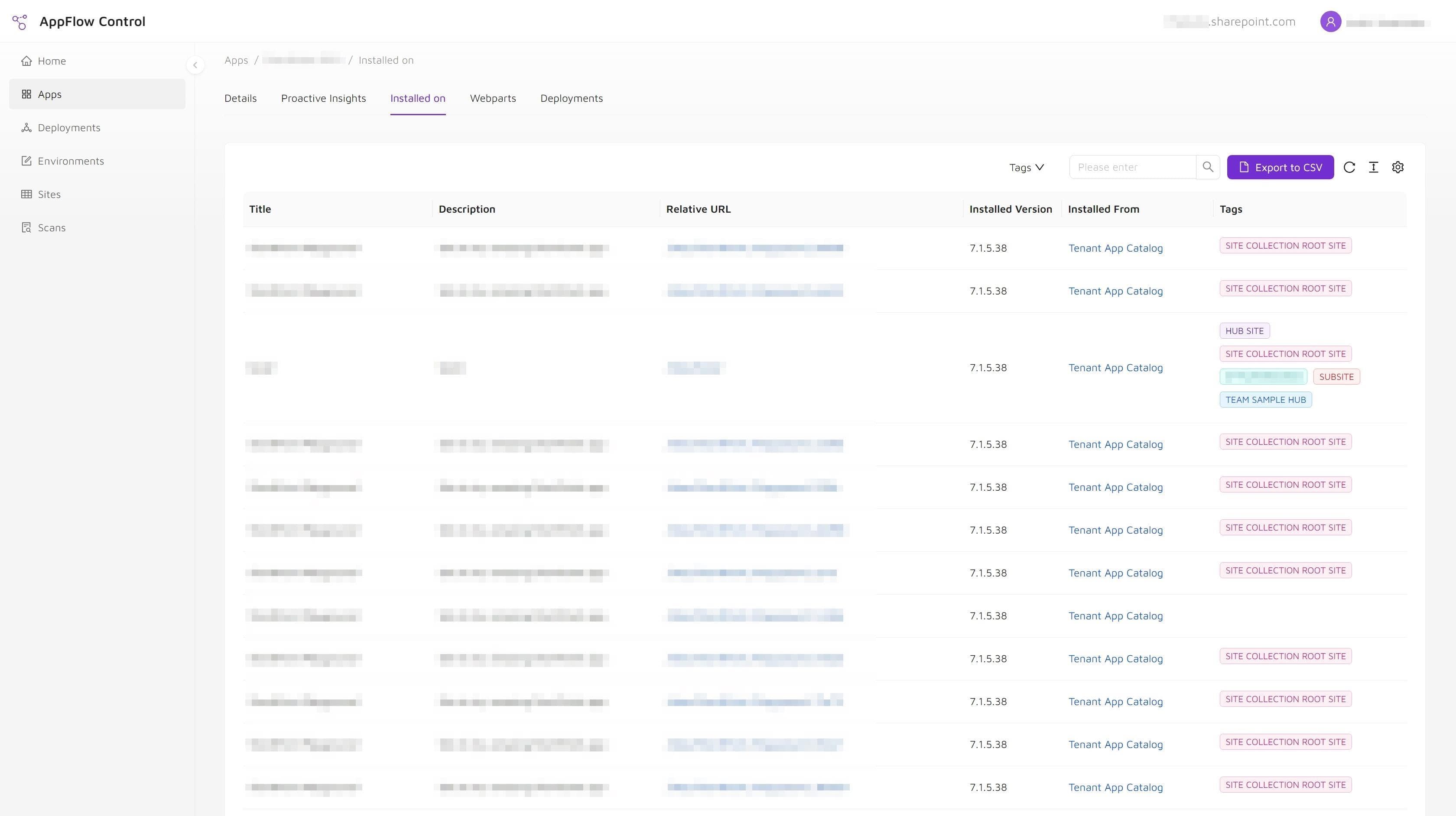
When a SharePoint admin team needs to update, audit, or retire an app, the first operational question is usually simple: where is this solution already installed? The answer is often harder to get than it should be, especially in environments with many sites and several different ownership groups.
AppFlow Control provides a direct installation inventory so teams can review app presence across the environment without rebuilding the answer from scripts every time.
Why Installation Inventory Matters
Installation data is the starting point for several important SharePoint administration tasks:
- confirming rollout coverage,
- planning upgrades,
- supporting governance reviews,
- and reducing the risk of removing the wrong solution.
Without a reliable inventory, each of those workflows starts with manual discovery instead of decision-making.
Why Native SharePoint Still Leaves Admins Searching
SharePoint gives administrators app catalogs and deployment capabilities, but it does not provide a strong environment-wide view of where a specific SPFx solution is currently installed. That is why many teams fall back to PowerShell or ad hoc records for a question they need to answer regularly.
This problem is also visible in the case study How a SharePoint Admin Team Replaced Weekend PowerShell Audits with Live App Inventory, where repeated inventory checks became a recurring operational burden.
Installed On A Site Is Not The Same As Used On A Page
Installation inventory is critical, but it is only one layer of visibility.
- Installed on answers where the app package is present.
- Used on a page answers where the component is actively placed.
For update planning and safe retirement, you usually need both. After you finish the installation audit below, use how to find where a SharePoint web part is used before you update or remove it for the dependency view.
Step-By-Step Guide
Step 1: Sign In or Sign Up
Visit AppFlow Control and sign in or sign up if you do not already have an account.

Step 2: Connect to Your SharePoint Online Environment
Ensure your SharePoint Online environment is connected to AppFlow Control if you have not done so already.
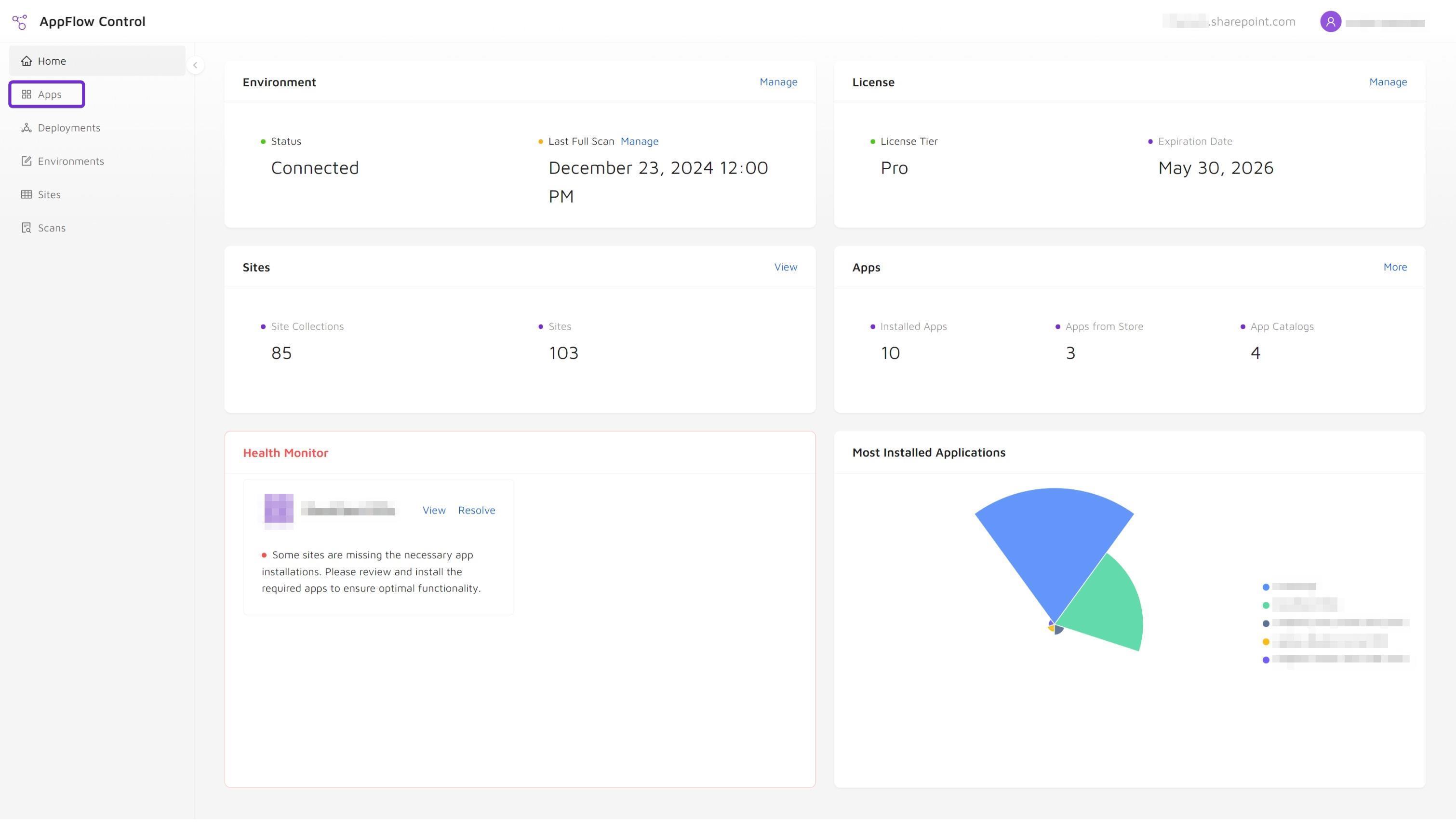
Step 3: Navigate to Apps
Select Apps from the AppFlow Control menu.
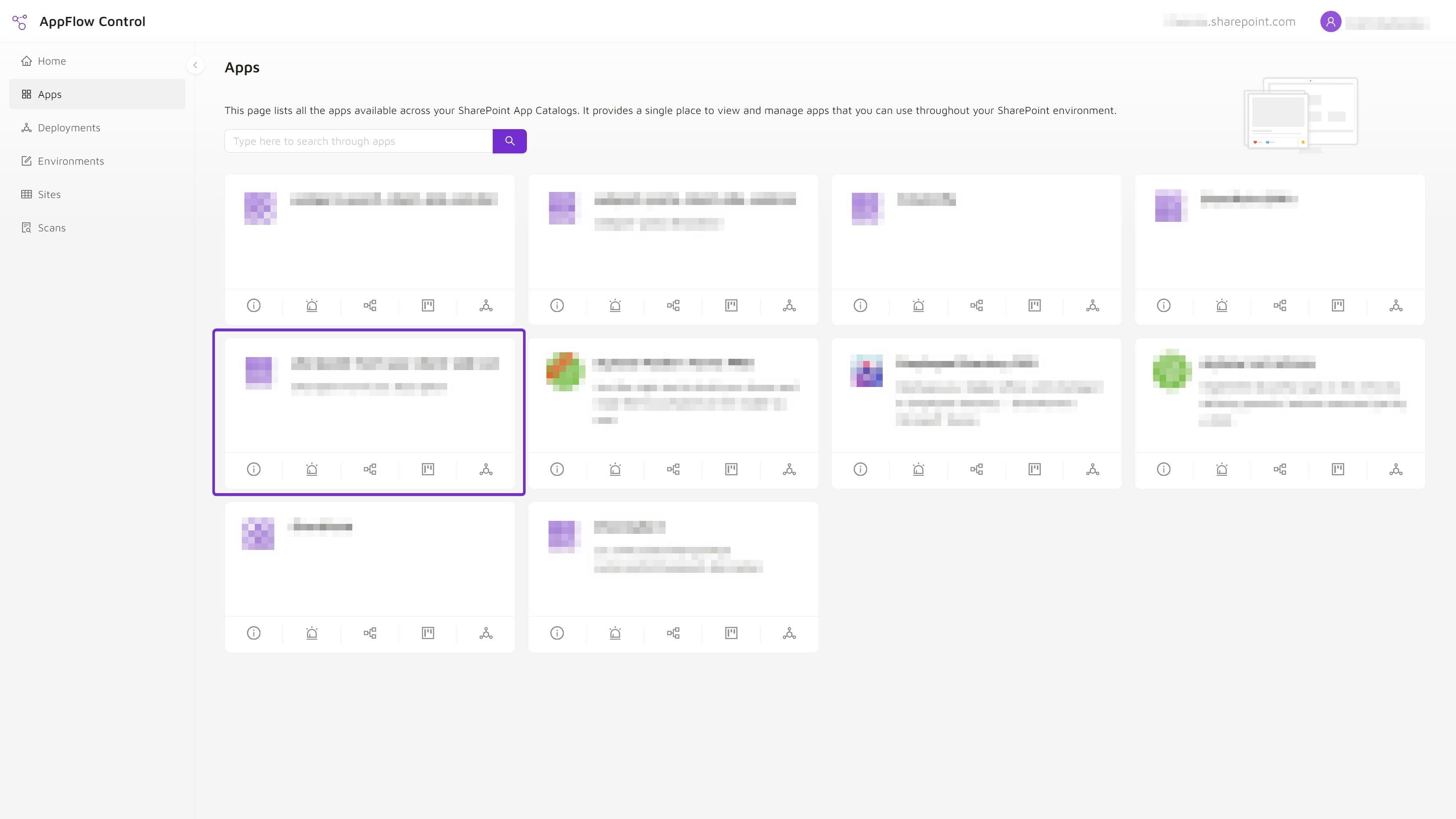
Step 4: Choose the App
Locate the app you want to inspect. Use the search feature to filter the list if needed.
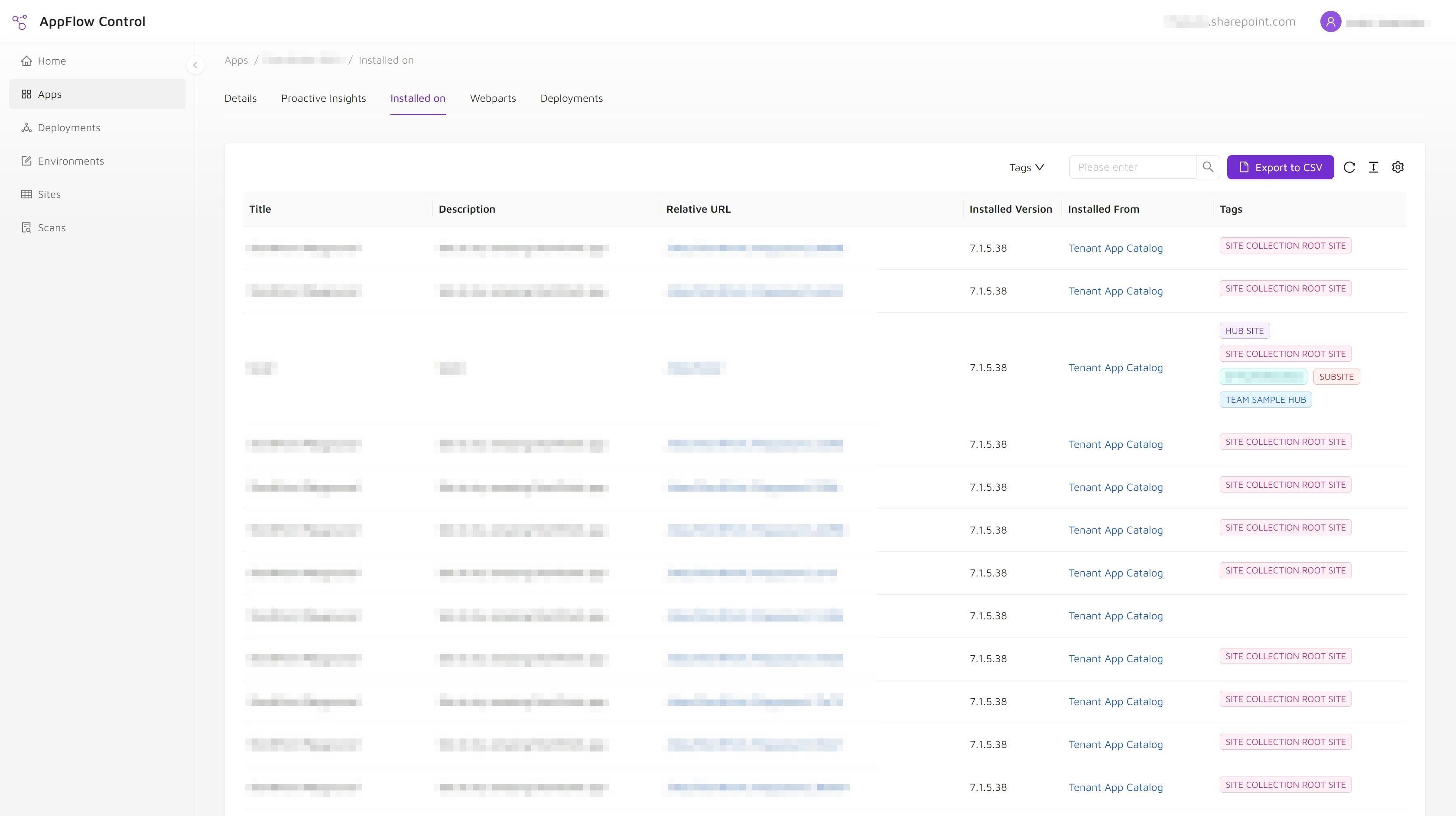
Step 5: Open the Installed On Tab
Click the Installed on tab to view every site where the app is currently deployed. From there you can:
- Filter the site list.
- Export the inventory to CSV.
- Open the target SharePoint site directly from the results.

How To Use Installation Data For Audits, Updates, And Cleanup
Once you have the installation list, use it as the operating baseline for the next decision:
- updates, when you need to confirm where a newer version must be rolled out;
- audits, when governance or support stakeholders need evidence;
- cleanup, when you are trying to understand whether an old solution still has a footprint in the environment.
If the next action is an upgrade, continue with how to update SharePoint apps on all sites. If the inventory supports governance or cleanup, review why an installed SharePoint app is not the same as a web part used on a page and the case study How a Governance Team Found Unused SharePoint Apps and Reduced Tenant Sprawl.
For a permanent removal, use the safe SharePoint app retirement workflow. If the next action is a broader operating-model change, the Microsoft 365 Administration service is the more relevant service layer.
Next Step
AppFlow Control helps administrators move from scattered records and reactive scripts toward a repeatable inventory workflow. That does not only save time. It makes the next lifecycle decision more defensible because the team starts with current evidence instead of assumptions.
Next step
Turn this workflow into a repeatable process with AppFlow Control
AppFlow Control helps administrators move from reactive troubleshooting to visible, repeatable deployment and support workflows across SharePoint environments.