
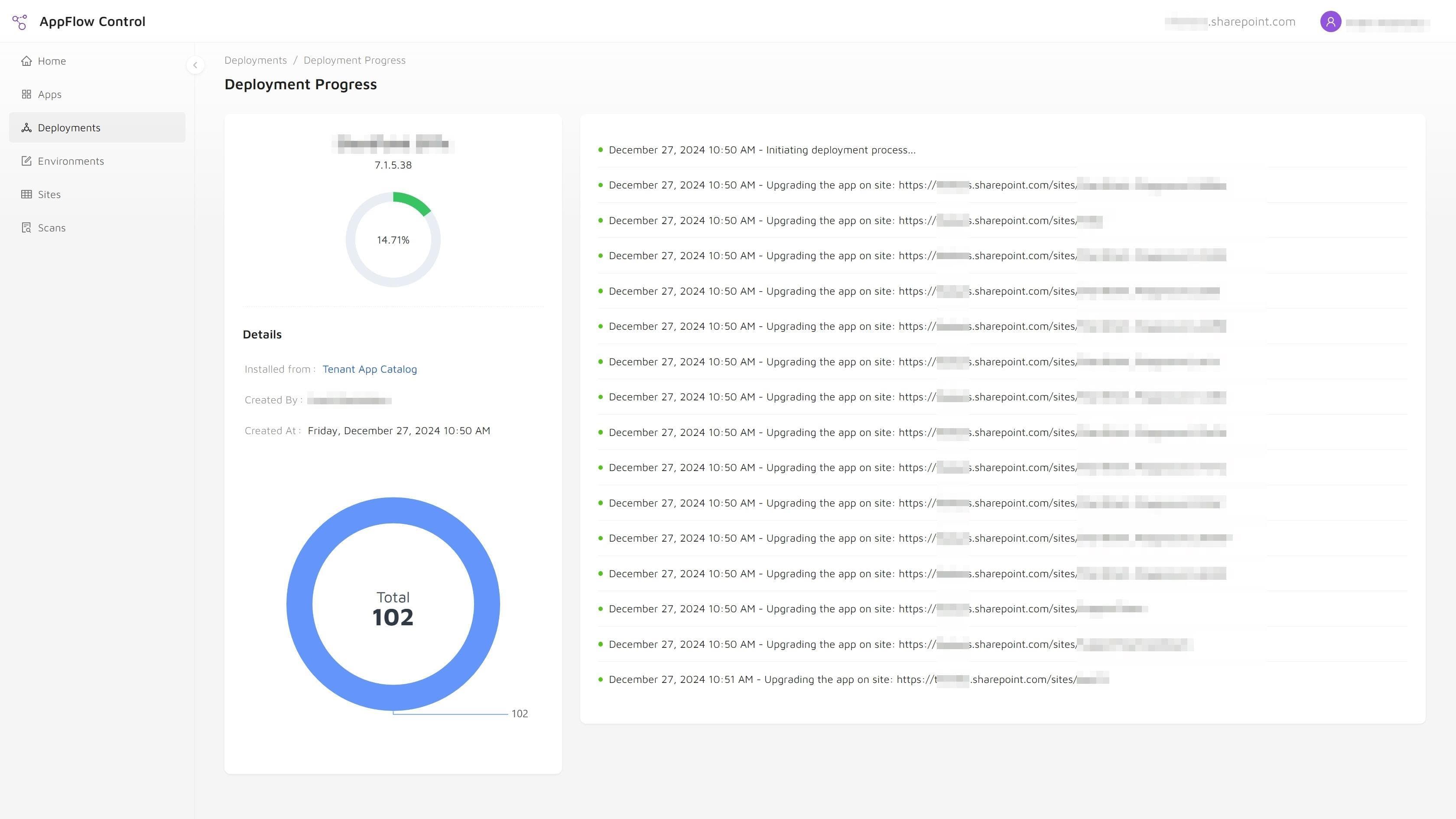
Updating a SharePoint app across many sites is straightforward only when the environment is small and well understood. In larger tenants, the hard part is not clicking Upgrade. The hard part is making sure the right sites are included, the affected pages are understood, and the rollout stays controlled from start to finish.
AppFlow Control helps administrators run that upgrade as a visible workflow instead of a collection of one-off steps.
Prerequisites
- Ensure the newer version of the app is already uploaded to the App Catalog.
Why SharePoint App Updates Are Easy To Postpone
App updates often sit in a queue because administrators cannot answer the questions that come before the deployment:
- Which sites currently have this app installed?
- Which pages still use the related web part?
- How broad is the blast radius if the new version behaves differently?
When those answers are not readily available, even necessary upgrades start to feel risky.
Why Native SharePoint Tooling Is Not Enough For Consistent Rollouts
Native SharePoint can store the updated package and support the deployment path, but it does not give administrators a complete environment-wide workflow for scoping, verifying, and monitoring an update.
That is why update work often drifts into PowerShell, manual exports, and repeated cross-checks. It is also why SharePoint app management breaks at scale: the platform supports the mechanics, while administrators still have to build the operational control around it.
Check Installations And Page Usage Before You Upgrade
Before starting the upgrade, validate both views of the environment:
- use how to locate SharePoint SPFx app installations across multiple sites to confirm where the app is installed;
- use how to find where a SharePoint web part is used before you update or remove it to understand where the component is actually in use.
That same principle appears in the case study How an Enterprise SharePoint Team Mapped SPFx Web Part Usage Before a High-Risk Update, where visibility shaped QA and stakeholder communication before the update window opened.
Step-By-Step Guide
Step 1: Sign In or Sign Up
Visit AppFlow Control and sign in or sign up if you do not already have an account.

Step 2: Connect to Your SharePoint Online Environment
Ensure your SharePoint Online environment is connected to AppFlow Control if you have not done so already.
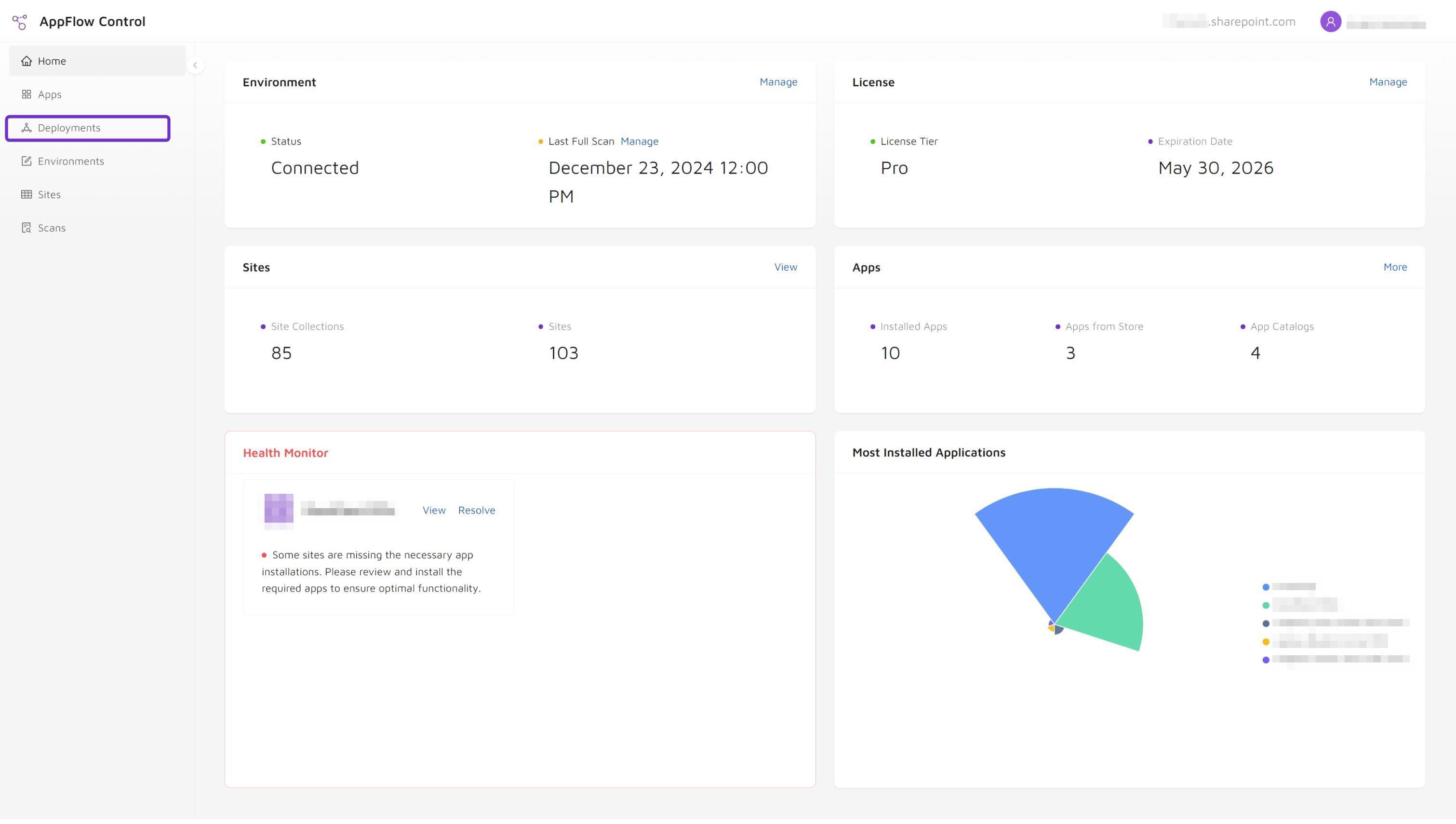
Step 3: Navigate to Deployments
Select Deployments from the AppFlow Control menu.
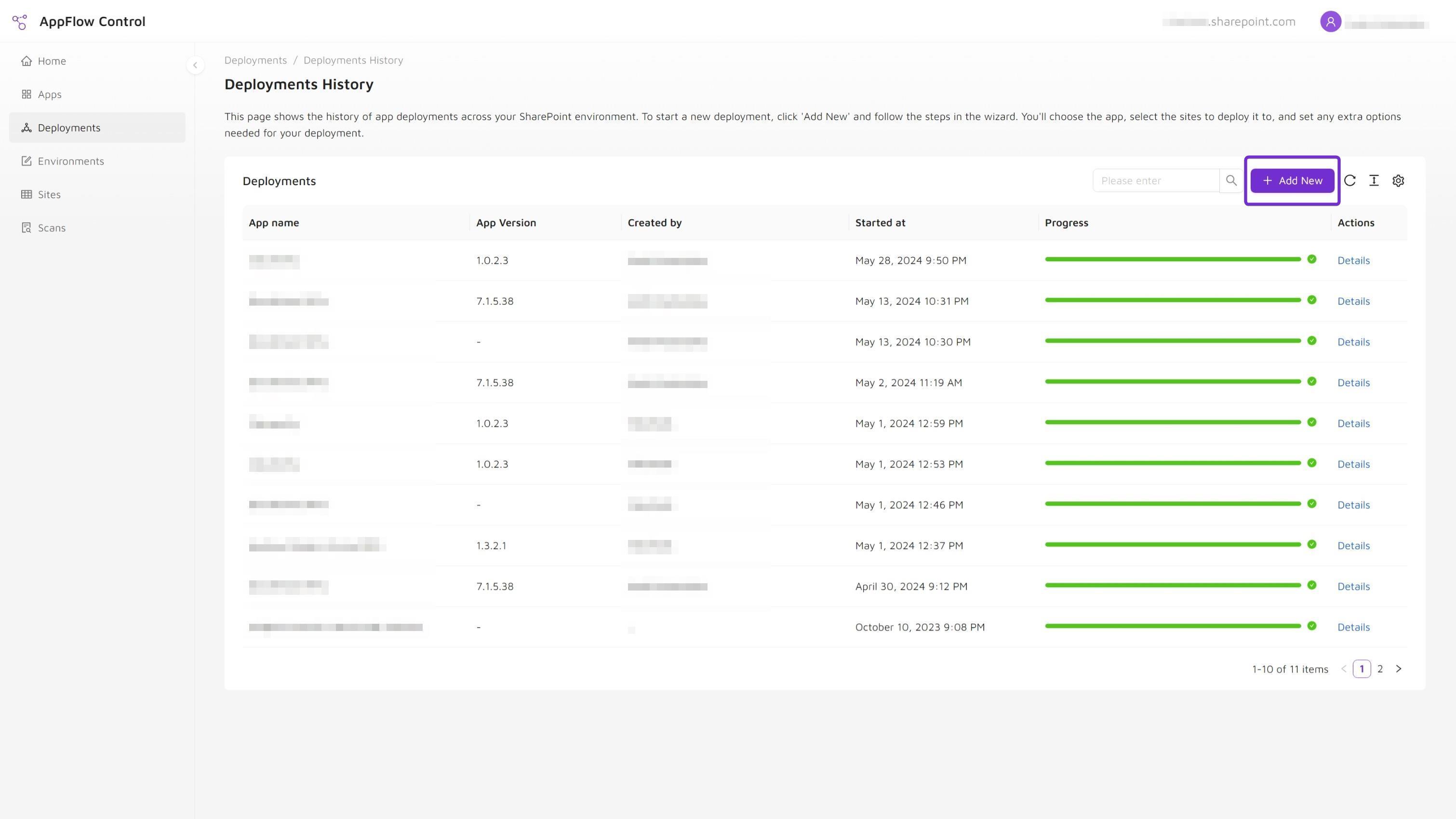
Step 4: Add a New Deployment
On the Deployments page, click Add New.
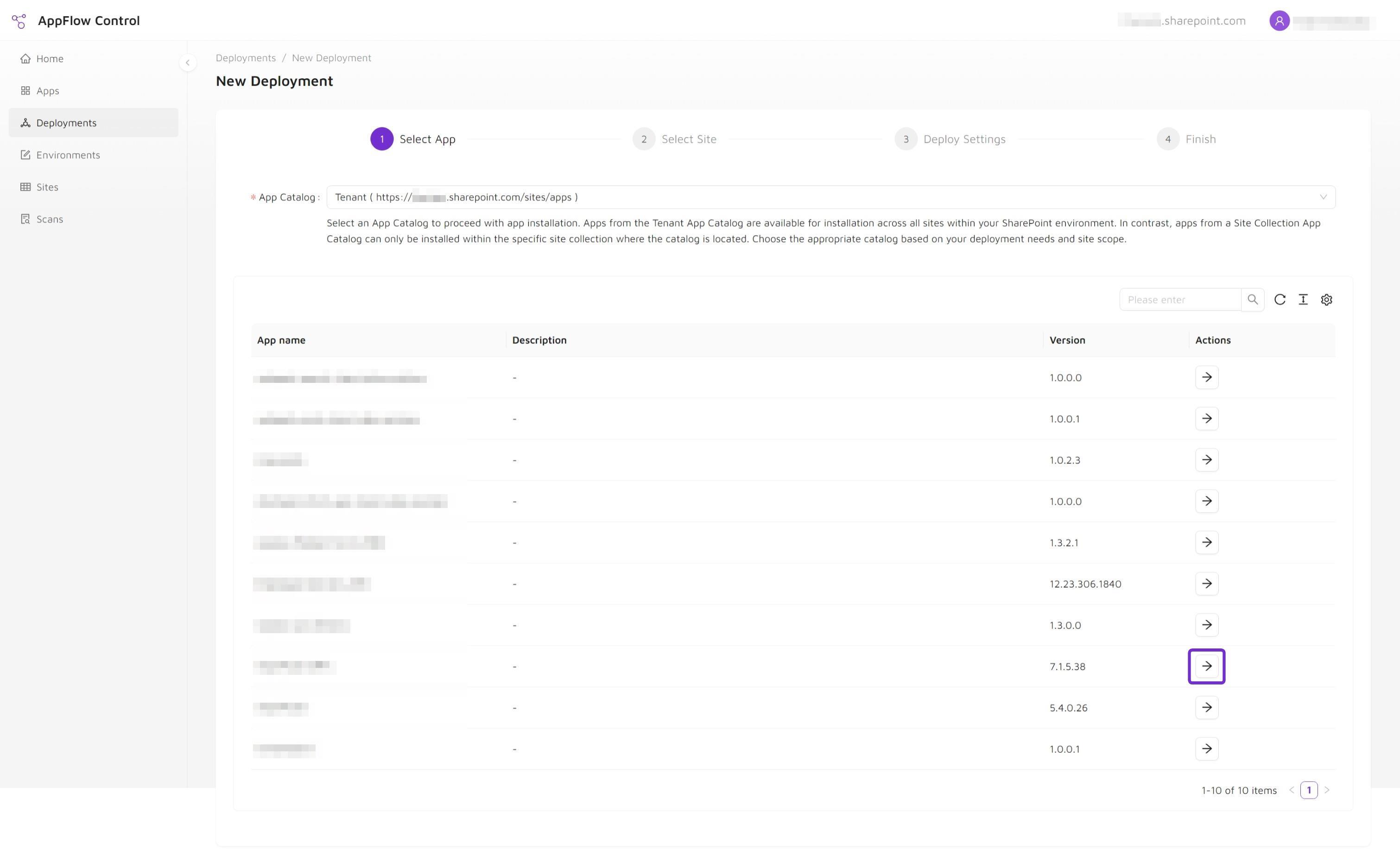
Step 5: Select an App Catalog
Choose the App Catalog that contains the latest version of the app so the correct build is used for the rollout.
Step 6: Choose the App
Select the app that should be upgraded by clicking Select.
Step 7: Bulk Upgrade
To upgrade the app across all sites:
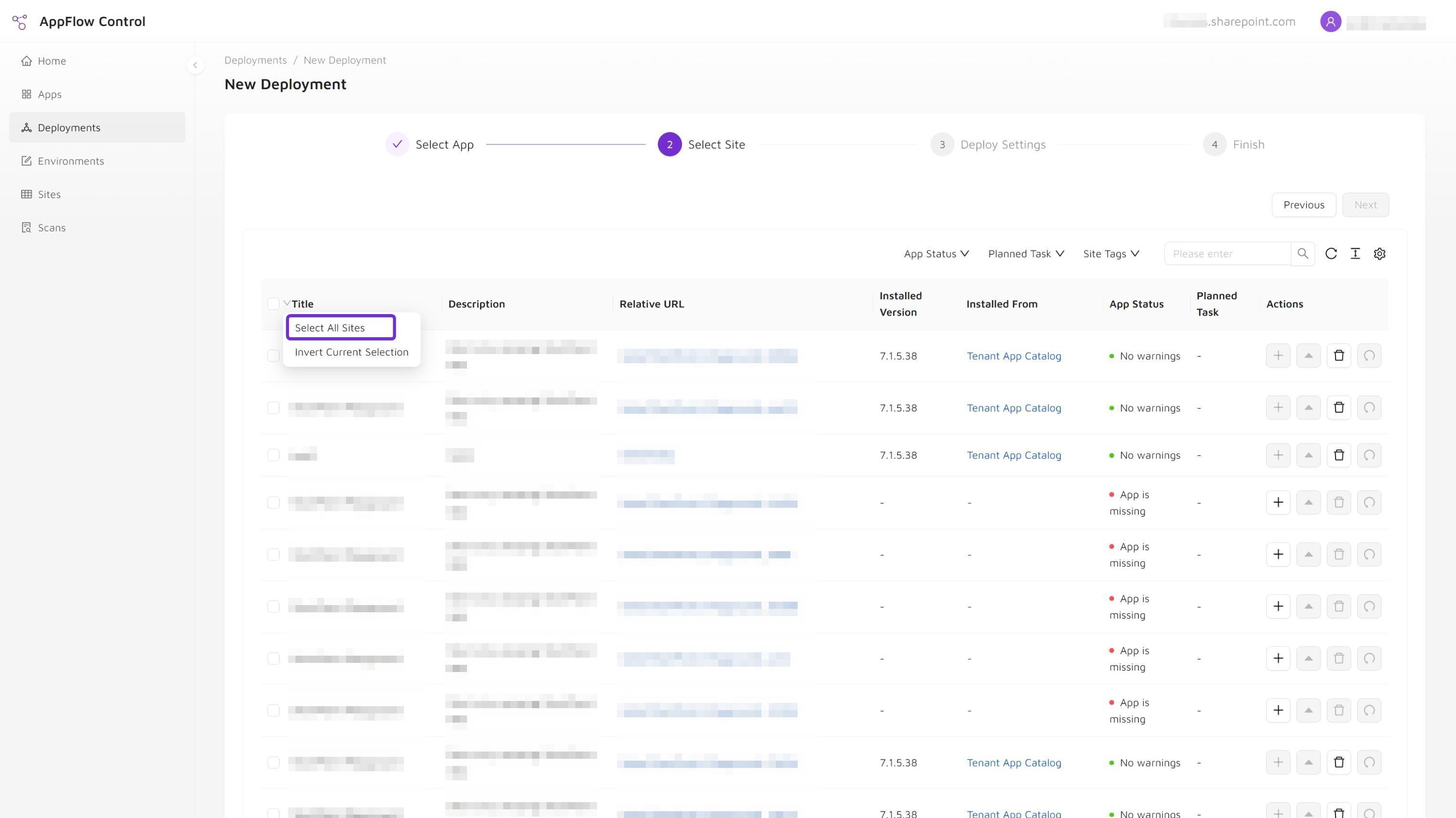
- Hover over the down arrow in the title column.
- Choose Select All Sites.
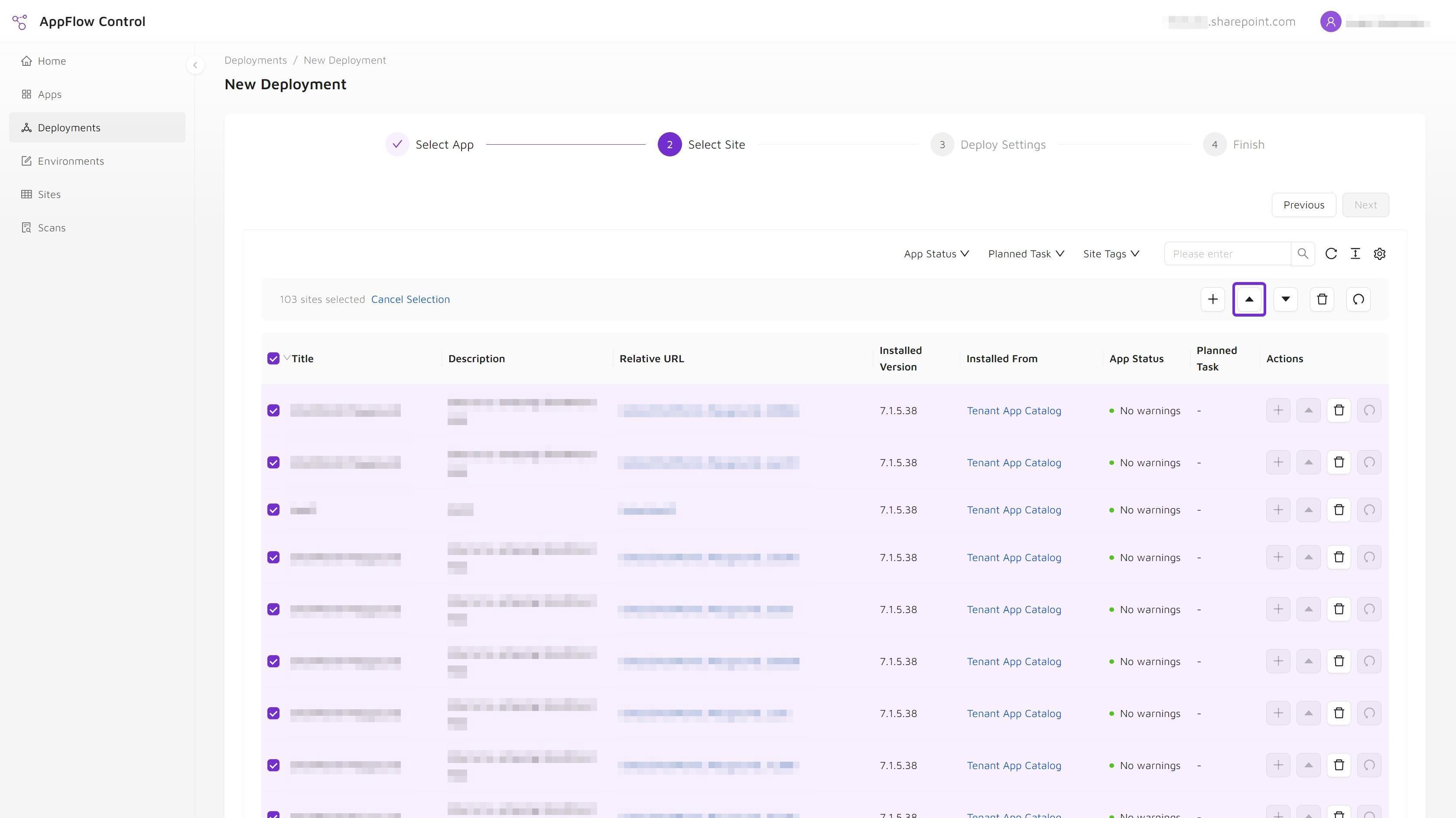
- Click Upgrade from the actions above the table.
Step 8: Deploy Settings
After site selection:
- Click Next.
- If the app requires scripting capabilities enabled at the site-collection level, toggle Scripting Capabilities in the deployment settings.
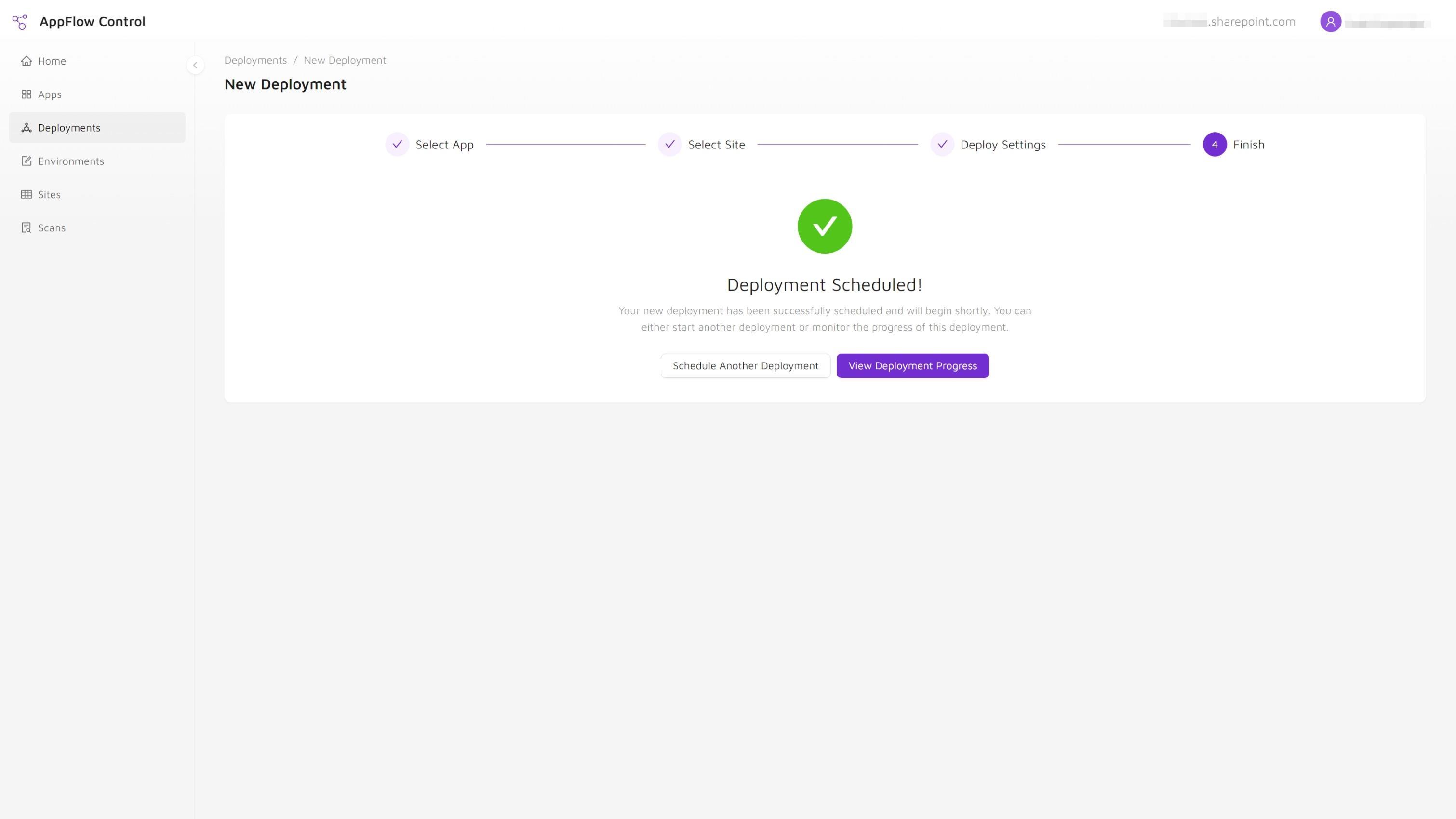
- Confirm the upgrade action.
Step 9: Track Deployment Progress
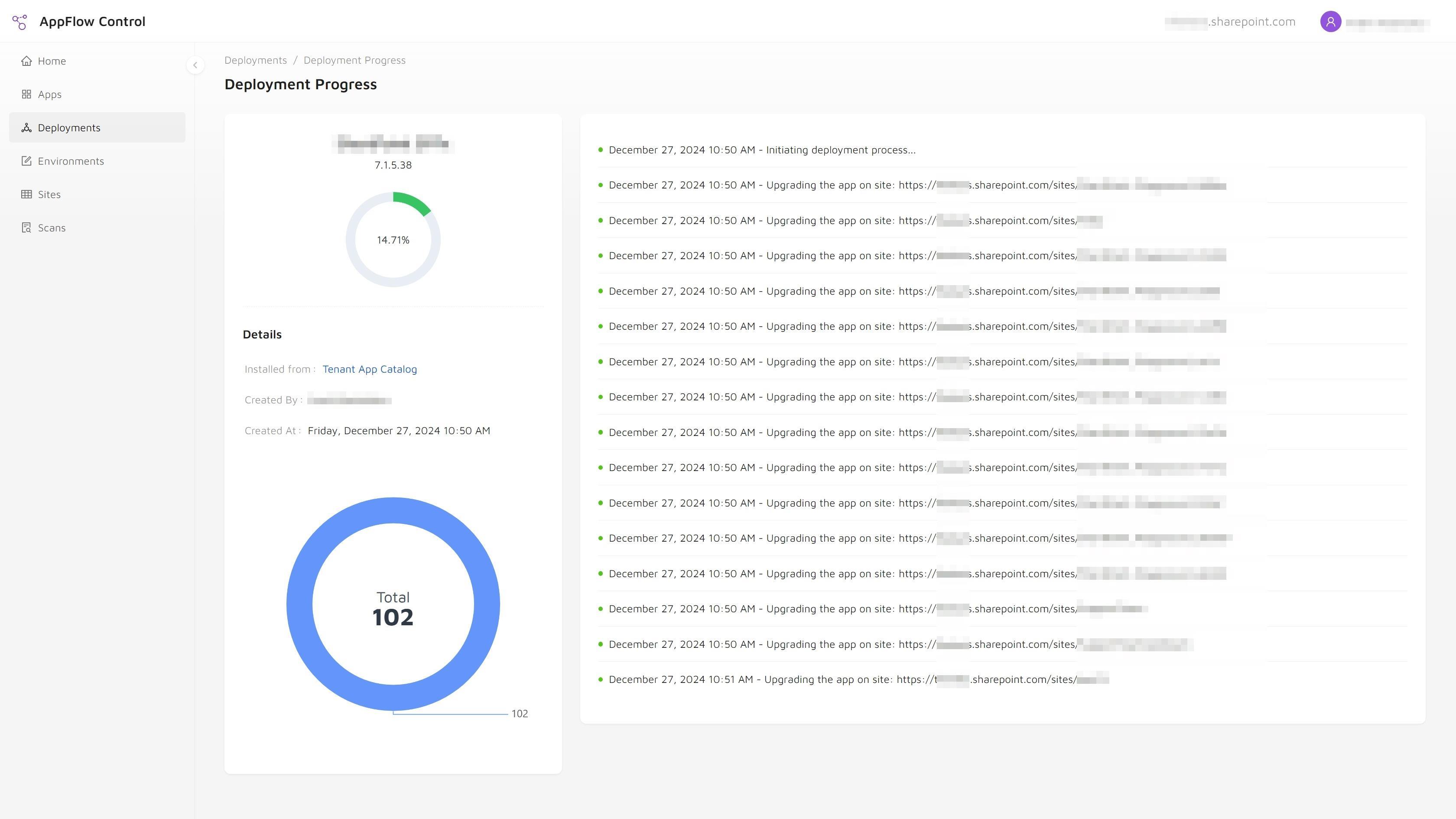
Click View Deployment Progress to monitor the update. The new app version becomes available immediately after the upgrade completes on each site.
What To Verify After The Rollout
After the upgrade completes, confirm:
- the intended sites received the newer version,
- the rollout matches the app catalog scope you expected,
- and the high-visibility pages identified during planning behave as expected.
This is where an operationally visible workflow matters most. The upgrade is only successful when administrators can explain what changed and what was checked afterward.
Next Step
If your team needs a safer way to keep SharePoint solutions current, AppFlow Control turns the upgrade into a more controlled workflow and reduces the amount of manual cross-checking around it. Compare PnP PowerShell with UI-driven SharePoint app management if repeated scripts are driving the process.
For broader governance and tenant-operations support, continue with Microsoft 365 Administration and SharePoint app catalog vs site collection app catalog. If the update is the final release before decommissioning, use the safe SharePoint app retirement workflow before any uninstall or catalog-removal action.
Next step
Turn this workflow into a repeatable process with AppFlow Control
AppFlow Control helps administrators move from reactive troubleshooting to visible, repeatable deployment and support workflows across SharePoint environments.