
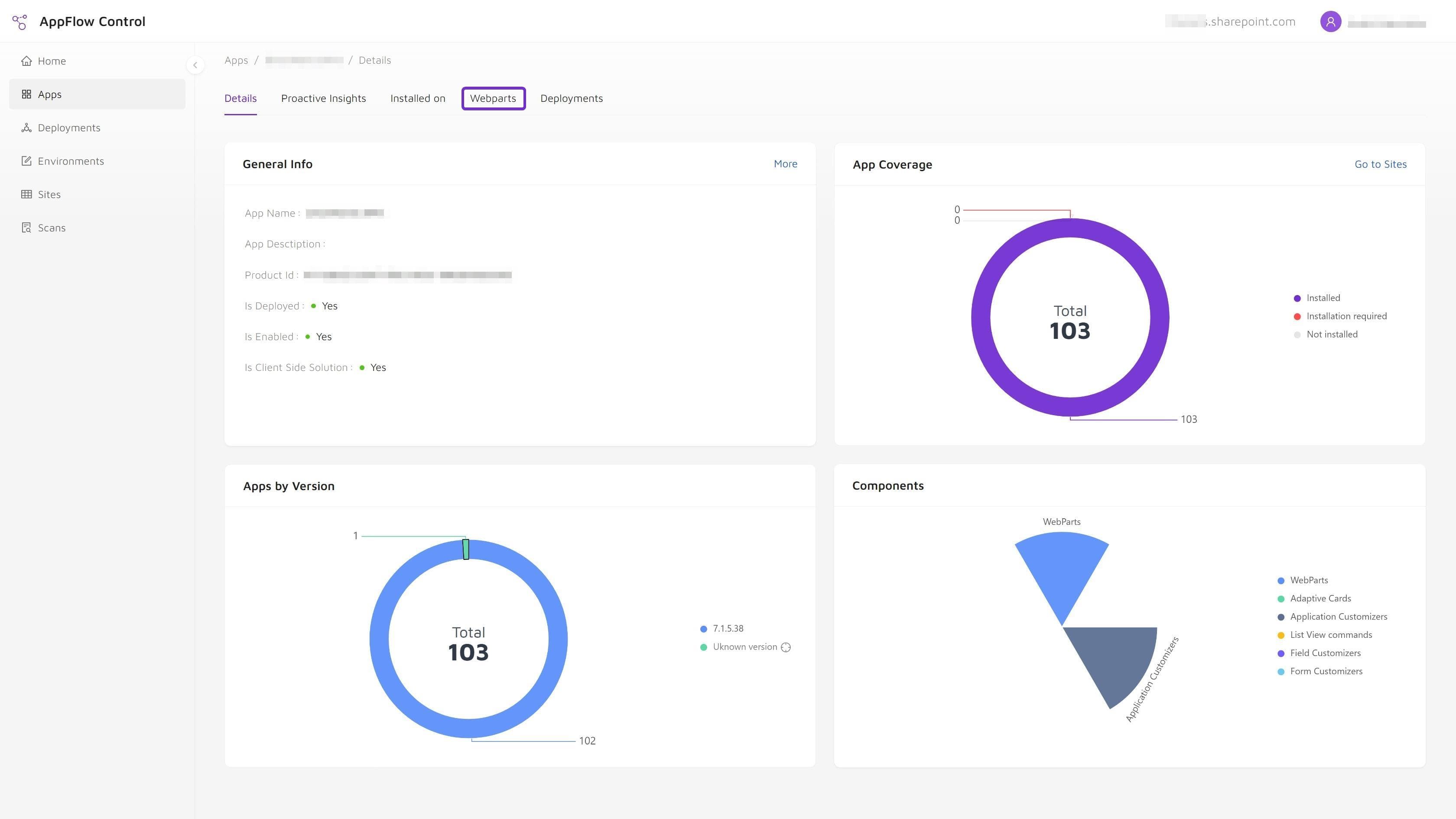
Installing a SharePoint app creates visible value quickly. Retiring one requires more care because the package may have left installations, web parts, extensions, permissions, or business dependencies across sites owned by different teams.
The catalog action is the final technical step, not the retirement plan. Microsoft explicitly warns in its Apps site guidance that deleting an app makes existing instances stop working. Administrators therefore need to know what those instances support before the package is removed.
Why Removing An App Is Harder Than Installing It
An installation workflow starts with a known target list. A retirement workflow often starts with incomplete history:
- the original owner may have moved roles;
- site collection app catalogs may have created local variations;
- a web part may still be placed on a page that is rarely reviewed;
- and support records may describe the app name without its package or component identifiers.
Native app-catalog controls can disable or delete a package, but they do not substitute for page-level dependency review. Removing first and investigating later can leave blank, broken, or incomplete user experiences on pages that still reference the component.
Common Retirement Failure Modes
Deleting the package before cleaning pages
Page instances can remain after the package is no longer available. Users then encounter a component that cannot render correctly, while site owners must find and repair affected pages under pressure.
Treating installation as proof of usage
A long installation list can cause the team to delay retirement indefinitely. Conversely, a quiet support history can create false confidence that the app is unused. The correct distinction is explained in installed on a SharePoint site is not the same as used on a page.
Missing site collection app catalogs
A package may exist in more than one catalog or version context. Retirement planning must account for the catalog scope described in SharePoint app catalog vs site collection app catalog.
Skipping permissions and external dependencies
Some solutions use API permissions, Entra applications, external APIs, or CDN-hosted assets. Package removal does not guarantee that every related permission or external resource is removed automatically. Each dependency needs its own owner and verification step.
Pre-Retirement Checklist
Use the following checklist before approving the change window.
- Identify the exact solution. Record the package, solution ID, component IDs, publisher, current version, and catalog locations.
- Inventory installations. Find every site where the app is installed and note version or catalog differences.
- Map component usage. Identify pages that contain web parts from the package and review any extensions or automated placements separately.
- Classify business impact. Map affected pages to owners, audiences, criticality, and known support processes.
- Choose a treatment. Decide whether each dependency will be removed, replaced, redesigned, or temporarily excepted.
- Plan communications and rollback. Tell affected owners what will change, how to validate it, and what happens if the retirement must pause.
- Capture baseline evidence. Export the installation and usage state before cleanup starts.
AppFlow Control supports the installation and web part visibility portions of this checklist so administrators can build the review list before taking destructive action.
Validate Dependencies Before Deletion
Dependency validation should connect technical inventory to business ownership.
Start with the installation list, but do not stop there. For every component in the package:
- identify the pages where it appears;
- verify whether the page is published and still relevant;
- ask the owner whether the component supports an active process;
- document any replacement or content migration;
- and define the expected page state after cleanup.
For the detailed discovery workflow, use how to find where a SharePoint web part is used before you update or remove it.
The case study How an Enterprise Retired Legacy SharePoint Apps Without Breaking Production Pages shows how a staged evidence-first workflow reduces retirement uncertainty.
Stage The Retirement
Avoid combining every cleanup action into one irreversible moment. A staged process is easier to validate and pause.
Stage 1: Stop expansion
Prevent new adoption where the platform and package model allow it. Communicate that the app is under retirement review.
Stage 2: Remove or replace page components
Work through the approved page list with site owners. Validate each replacement or page edit before proceeding to package removal.
Stage 3: Uninstall site instances
Remove the app from the applicable sites after page-level dependencies have been addressed. Record failures and exceptions rather than assuming a bulk action completed everywhere.
Stage 4: Remove or disable catalog availability
Only after the affected sites and pages have been reviewed should the team remove the package from distribution according to its catalog scope.
Stage 5: Clean related dependencies
Review permissions, Entra registrations, external services, documentation, support ownership, and any remaining catalog artifacts. Treat each as a separate verification item.
Verify Cleanup Afterward
Post-change verification should answer the same questions as the baseline:
- Does the app remain installed on any site outside approved exceptions?
- Do any pages still contain the retired component?
- Are replacement pages rendering correctly?
- Did any site-level uninstall or cleanup action fail?
- Are permissions and external dependencies in the intended state?
- Is the retirement decision and evidence stored with the change record?
This before-and-after comparison turns cleanup into a controlled lifecycle operation rather than a one-time deletion.
Document Evidence For Governance
A useful retirement record includes:
- package and component identifiers;
- installation and page-usage exports;
- owner decisions and exceptions;
- replacement or page-cleanup status;
- execution results;
- and final verification evidence.
The record does not need to be elaborate. It needs to be understandable by someone who did not run the change.
For organizations with several old customizations or third-party packages, Microsoft 365 Administration can help define the retirement process, while Custom SharePoint Solutions supports replacement architecture when the legacy capability still serves a business need.
The practical next step is to build the baseline. Start with SharePoint app installation inventory, add page-level web part discovery, and only then approve uninstall or catalog-removal work.
Next step
Build a safer SharePoint app retirement workflow before removal starts
Use AppFlow Control to establish installation and web part usage baselines, then verify the environment again after staged cleanup and uninstall work.